SUMMARY:
A Clubhouse Leaderboard display allows clubs to display daily competition results in real time as scores are submitted back to the OneGolf competition management system.
As the Clubhouse Leaderboard is accessed and setup within the OneGolf system under an Administrator login, the Leaderboard can be displayed on any audio / visual device that has internet access including:
- Smart TVs (internet enabled)
- TVs or PC monitors controlled via PC
- Touch screen kiosks (all in one PCs)
- Touch screen tablets
The Clubhouse Leaderboard setup screen is accessed via the CLUB LEADERBOARD button on the selected competition on the Competition List page.

SECTION 1: CREATE / EDIT DISPLAYS
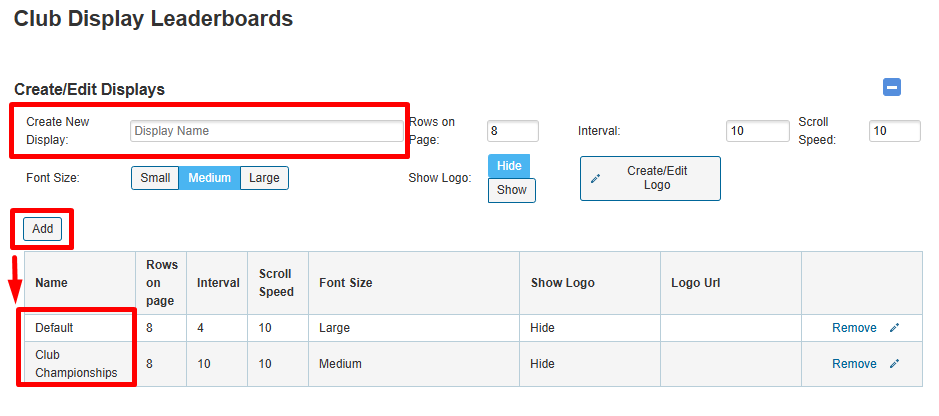
Clubs can setup multiple different Leaderboard display templates by clicking on the arrow symbol on the top right hand side of the Club Leaderboard page as per the screenshot below.

Type in a relevant Display Name in the ' Create New Display' text box and click the Add button to save to the leaderboard list below.
As per the screenshot below, a Leaderboard display can be customised by the following parameters:
| Rows on Page | The number of rows (players) displayed from the competition results |
| Interval | The number of seconds between the screen scrolling through player results (default = 10s) |
| Scroll Speed | Speed that the results are displayed on the page. It is recommended to use the Default '10' setting for optimal readability. |
| Font Size | Select Font size from Small, Medium (Default) or Large |
| Create / Edit Logo | A Club Logo can be added to the Leaderboard display. |
Note: Clubs can also contact MiClub Support for assistance in setting up a default Leaderboard display including course background image as displayed in the following article.
SECTION 2: QUICK LEADERBOARDS
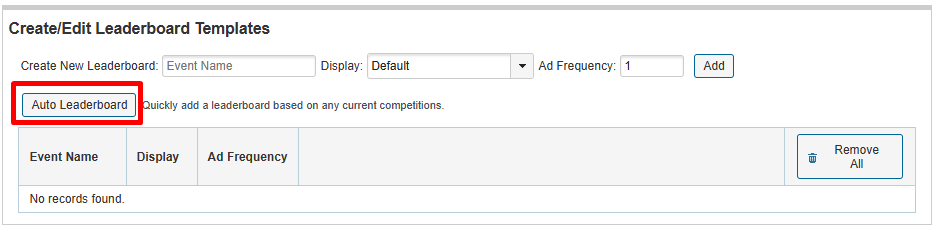
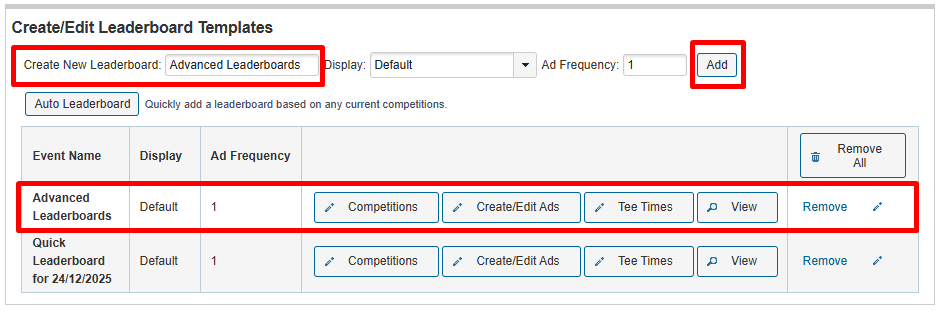
Under the Create / Edit Leaderboard Templates section of the page, Administrators can quickly create a default leaderboard based on the days competition (or competitions) by simply selecting the 'Auto Leaderboard' option.
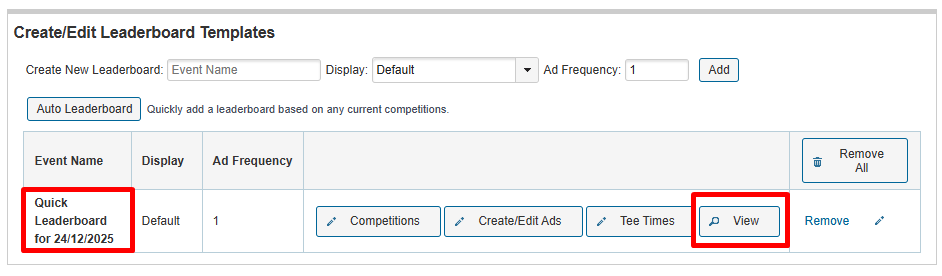
The Auto Leaderboard can then be displayed by clicking the VIEW button as per the screenshot below.
The daily leaderboard is displayed in the following scrolling format.
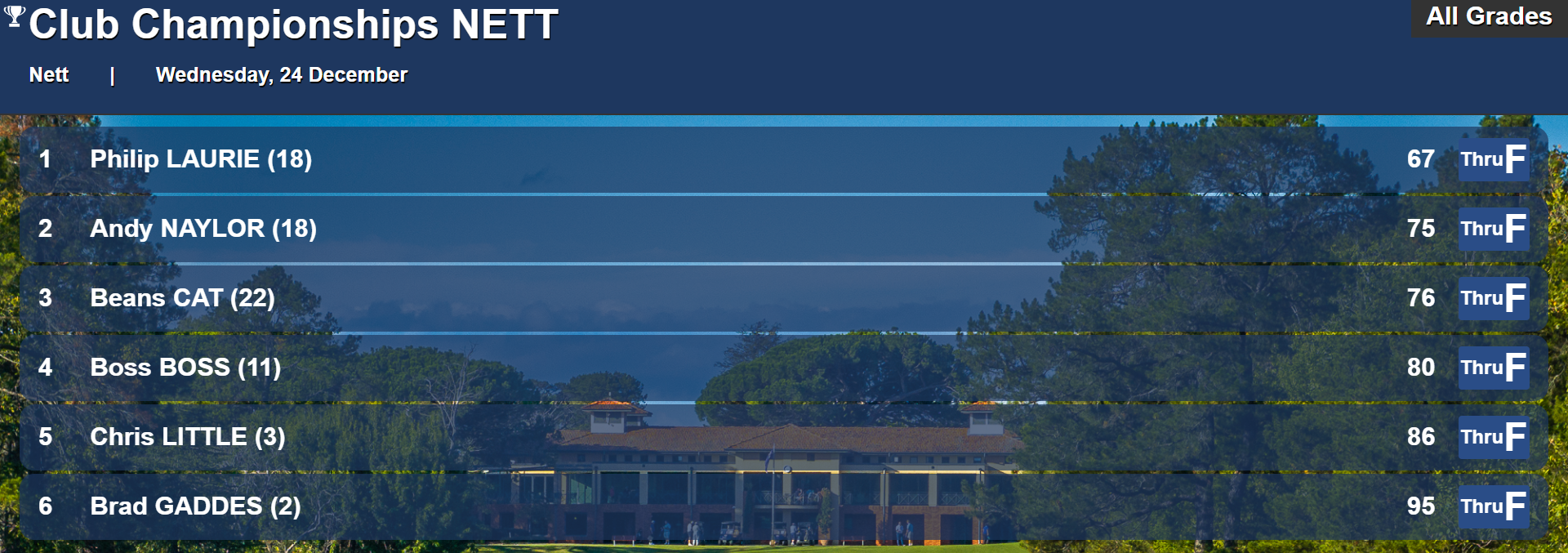
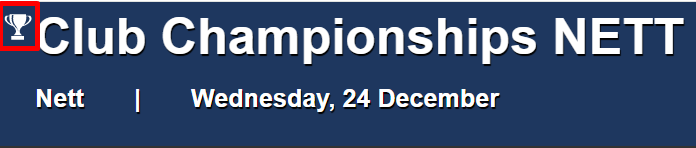
Hint: To exit the Leaderboard screen and return to the setup screen, click on the TROPHY icon in the top left hand corner of the screen as per the screenshot below.
SECTION 3: ADVANCED SETTINGS

Was this article helpful?
That’s Great!
Thank you for your feedback
Sorry! We couldn't be helpful
Thank you for your feedback
Feedback sent
We appreciate your effort and will try to fix the article