SUMMARY:
Systems or Internal leaderboards can be viewed for all competitions.
The System Leaderboards can be viewed by Administrators only and contain a number of different functions as explained in the following article:
Access the System Leaderboard by clicking on the LEADERBOARD button of your daily competition from the Competition Listings page.

TOP MENU:
1. Additional Options

The following functionality is available by clicking on any of the highlighted links:
| Export | Function exports all displayed competition results to an Excel spreadsheet |
| Update | Updates / refreshes all current scores on the leaderboard screen. |
| Show Rounds | Applicable to Multi-Round competitions where all round results can be displayed |
| Daily Handicaps | Displays the Daily Handicap of all registered players for reference |
| Grades | Displays current Grade setup and number of players (As a percentage of the field) registered in each grade. |
| Prize Leaderboard | Displays the Prize Leaderboard if a prize allocation has been setup in the selected competition. |
2. View As
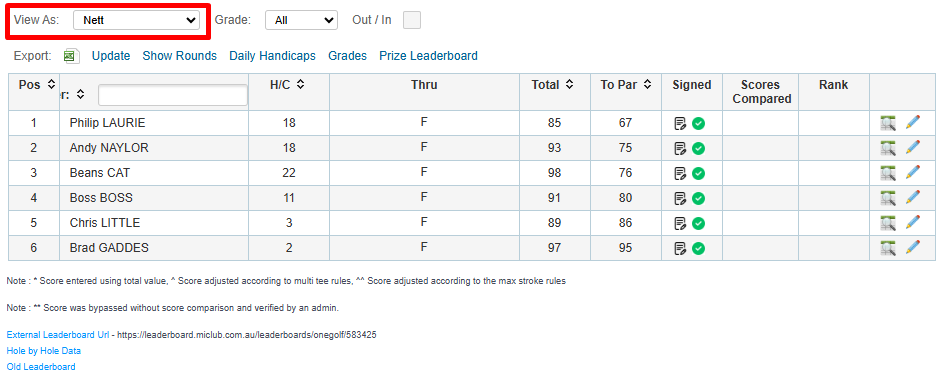
The 'View As' dropdown option allows administrators to view the competition results in different scoring formats.
The default view is the scoring format you have nominated in your selected competition - in this example a NETT competition.
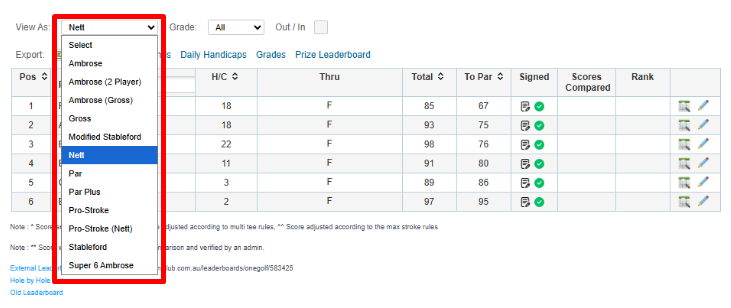
The 'View As' option is a very useful tool to quickly allocate additional prizes within a competition e.g. a GROSS winner within a NETT competition
The drop down list displays other competition scoring formats that can view results for.
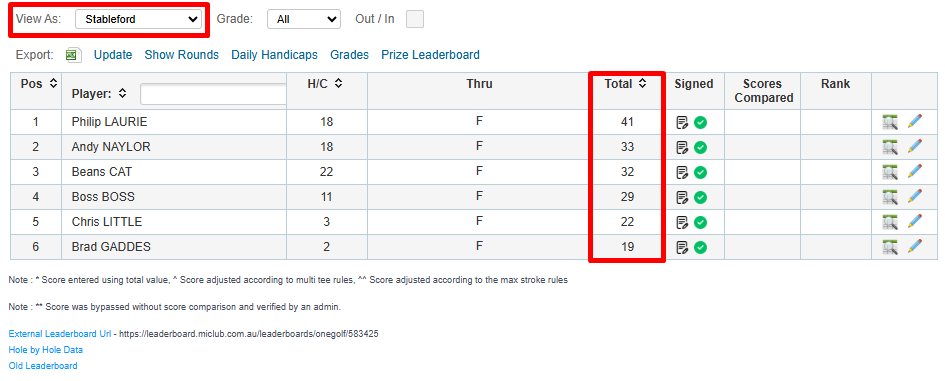
In this example the NETT competition can be viewed as a Stableford result.
3. Grades
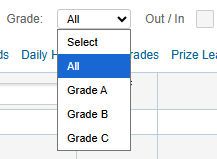
By default the Leaderboard will display results for all grades. To view individual grade results, select the required grade from the Dropdown list.
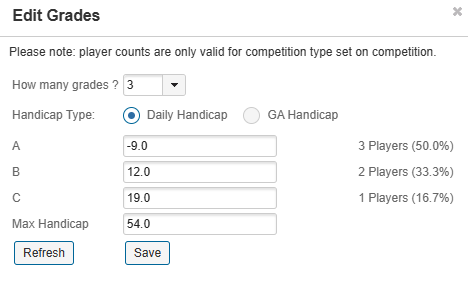
In addition, selecting the GRADES option from the Additional Options list allows administrators to view grade parameters and the number of players registered in each grade.

From the popup menu, administrators can create additional grades or delete grades and change the parameters (handicap limits) within each grade individually. This option is particularly useful if administrators want to provide an even percentage of registered players within each grade which is displayed on the right hand side of the screen.
4. Out / In
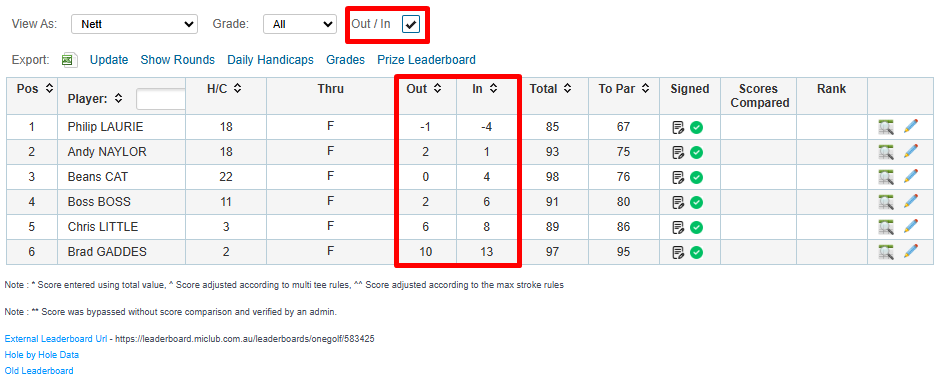
Select the Out / In tick box to results by front and back nine holes as per the example below. Note that the Front Nine (Out) and the Back Nine (In) correspond to holes 1- 9 and 10 - 18 as per your course setup, regardless of which tee players started their round from.
The Out / In option is again useful to administrators for awarding additional prizes for individual nine hole results.
BOTTOM MENU:
| External Leaderboard URL | A website URL link available for all competitions that allows clubs to display competition results on their websites to non members (i.e. no member login is required to view results). The External Leaderboard link is a useful tool for clubs running open or invitation competitions where their might be a large number of visitors (non members) registered in the competition field. |
| Hole by Hole Data | Allows Administrators to export all hole by hole data for all players to an Excel spreadsheet. |


Was this article helpful?
That’s Great!
Thank you for your feedback
Sorry! We couldn't be helpful
Thank you for your feedback
Feedback sent
We appreciate your effort and will try to fix the article