1. Create New Member
There are two options. You can either select the Create Member button in the shortcut menu:

Or select Create Member from the Menu bar:
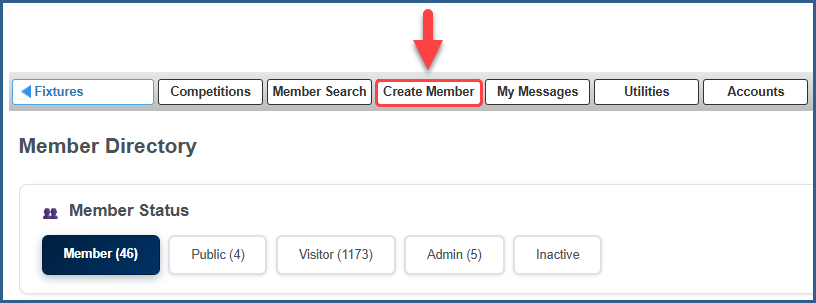
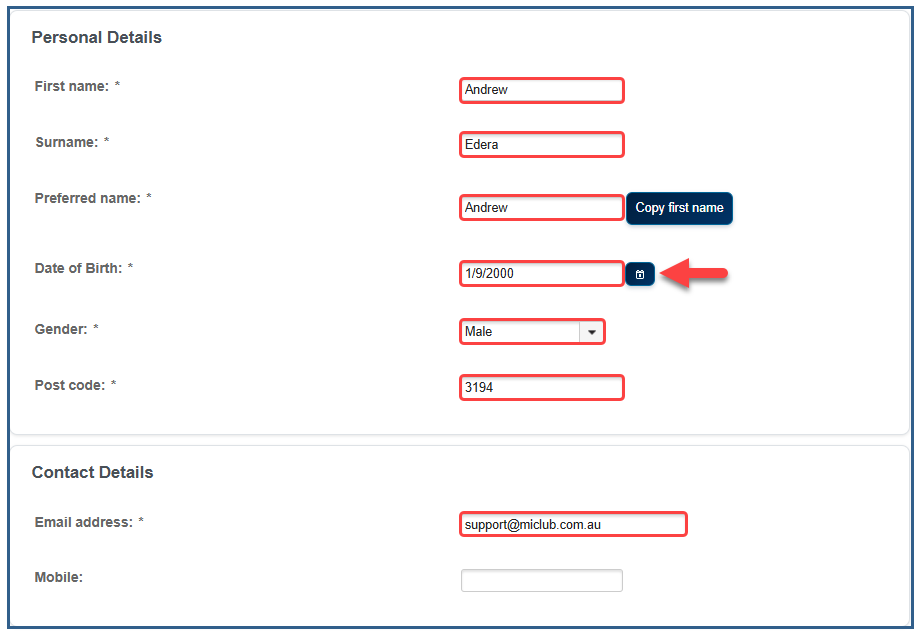
Fill out all required fields within Personal Details - First Name, Surname, Preferred Name, Date of Birth, Gender, Post code, Email
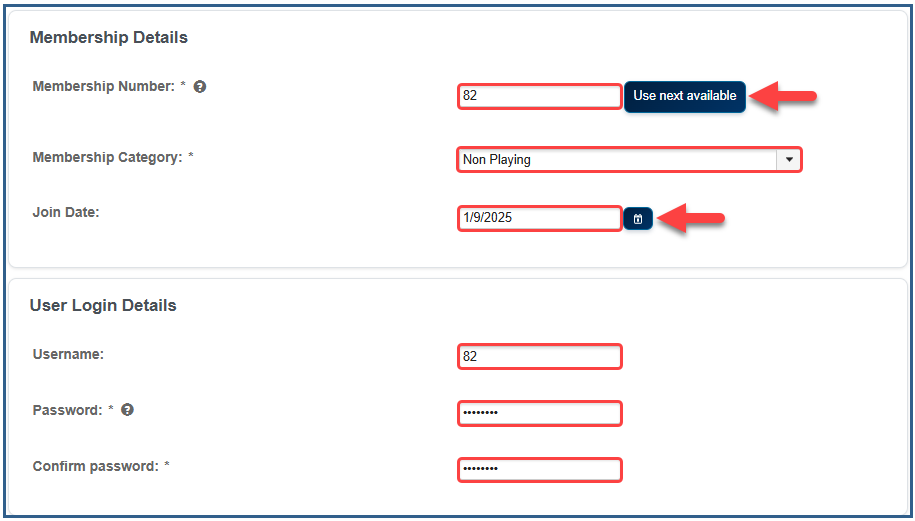
Fill out all required fields within Membership Details & User Login Details
Select Use next available to generate the next available Membership Number. The username will be automatically generated based on the Membership Number. If the Membership Number is not automatically generated please contact MiClub Support.
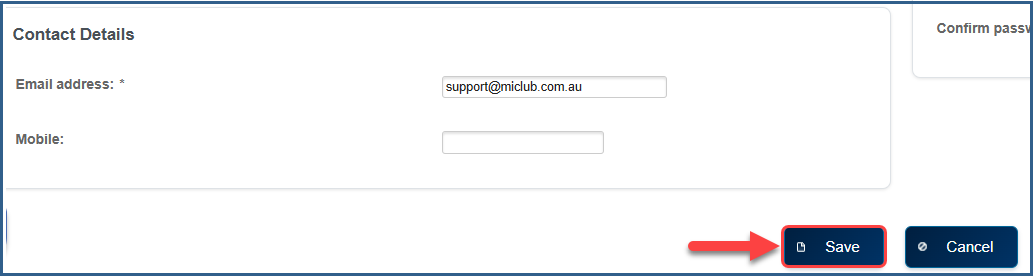
Once all details are completed select Save to create the new member
2. Create or Set Golf ID
If the member has an existing Golf ID and will be joining your club as a Home Member, follow the steps in this article to Set a Golf ID.
If the member has an existing Golf ID as a Home Member at another club, follow the steps in this article to Set a Secondary Member (previously referred to as Away member)
To Create a New Golf ID select Add Golf ID
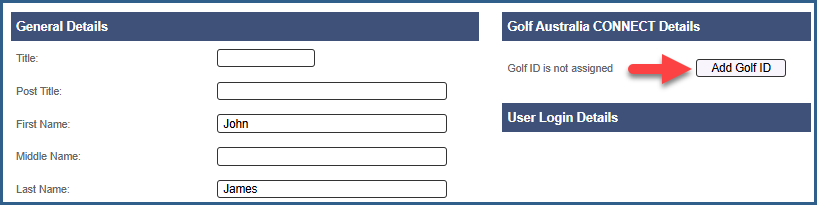
Create Golf ID Number

- The system will prompt you to add an email to send to Golf Australia CONNECT. The club can send the member's email or use a club email for this prompt.
- Confirm
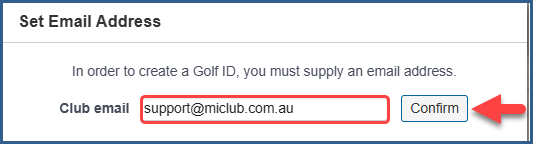
- The system will show ticks to indicate that all criteria have been met
- Next

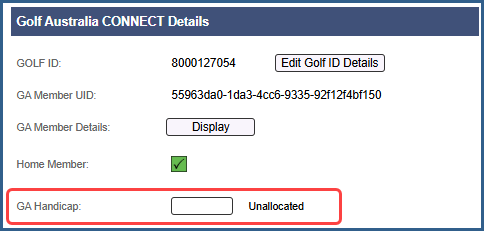
- The following screen indicates that the Golf ID was successfully linked. The players handicap status will be Unallocated until an Initial Handicap Allocation is completed.

Was this article helpful?
That’s Great!
Thank you for your feedback
Sorry! We couldn't be helpful
Thank you for your feedback
Feedback sent
We appreciate your effort and will try to fix the article