Adding a new membership category
From the top menu, select MEMBERSHIP | MEMBERSHIP CATEGORIES

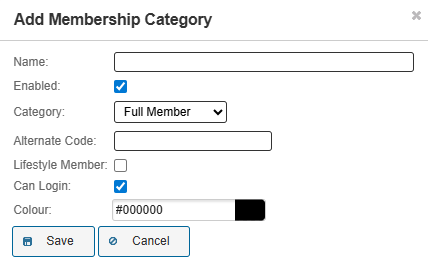
Select the ADD button to add a new category

Add the membership category details as applicable (refer to table below for setting definitions
Editing Membership Categories
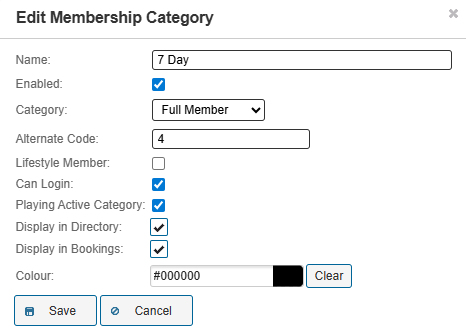
To edit the details of a membership category select the PENCIL symbol on the right hand side of the corresponding category row.

Membership category details can be edited as per the following table:
Field Definitions
| Field | Description |
| Name | Membership category name (i.e. 7 Day, 6 Day, Junior etc. |
| Enabled | Whether the membership category is active enabled (Yes / No) |
| Category (Type) | - Administrator - Full Member (Default) - Public - Visitor By default, a new member entered into OneGolf should be tagged as a FULL MEMBER. Profiles tagged as administrators, Public or Visitor will be automatically allocated depending on system setup. |
| Alternate Code | *MiClub Admin Only (relating to external systems integration where required) |
| Lifestyle Member | Select only if LIFESTYLE module installed and enabled (contact MiClub support for assistance) |
| Can Login | Clubs can select whether any membership category can login top One Golf (Yes / No) |
| Playing Active Category | Does this membership category have access to bookings and / or competitions (Yes / No) |
| Display in Directory | Member details within any category can be included or hidden from the online Membership Directory (member View) (Yes / No) |
| Display in Bookings | Member details within any category can be displayed or hidden on the OneGolf timesheet (Yes / No) |
| Colour | Colour selection chart to identify categories (Admin View) on a Timesheet |

Was this article helpful?
That’s Great!
Thank you for your feedback
Sorry! We couldn't be helpful
Thank you for your feedback
Feedback sent
We appreciate your effort and will try to fix the article